






















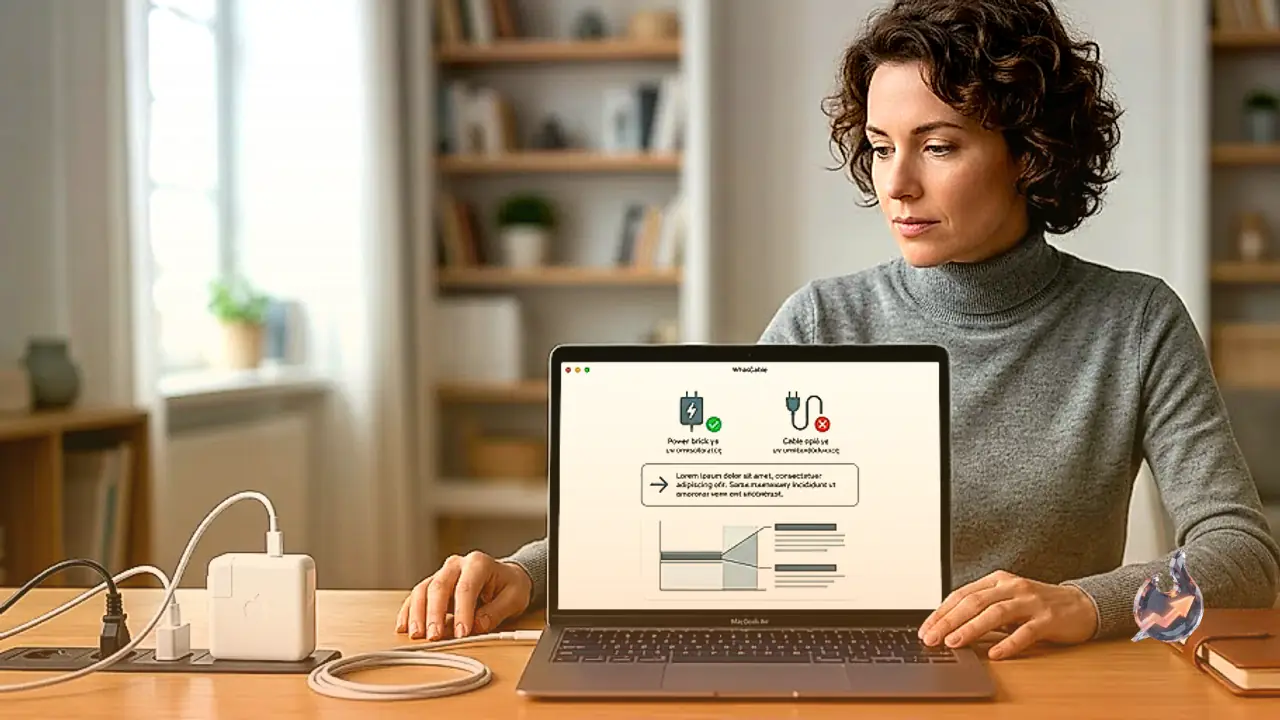

It is a common frustration to notice that your laptop is not charging as efficiently as it should. Whether the culprit is the power adapter or the specific USB-C cable being used, it can be difficult to diagnose the issue. WhatCable, a useful free Mac application, simplifies this process by breaking down the charging situation without any confusing technical jargon. It displays the precise rate at which your laptop is receiving power and explains the underlying reasons behind the performance.
The Complex Landscape of Cables and Ports
Navigating the modern landscape of charging standards can feel overwhelming. Every connection involves three distinct elements that must work in harmony: the port on your target device (such as a charger or monitor), the cable acting as the bridge, and the port on your host device (like your phone or laptop). To achieve the best results, such as maximum charging speed or smooth display output, all three components must support the same standards. If they do not align, you may fail to see optimal results, or the setup might not function at all.
Analyzing Technical Standards
For the average consumer, simply ensuring a cable physically fits a port is not a guarantee of performance. Cables and ports come with varying supported standards that must be weighed, such as the different iterations of USB (we are currently up to USB 4.0 version 2). Once you identify the capabilities of your computer or phone ports, you need to find a cable that matches those standards to get the best possible experience. Be diligent when reviewing cable listings; specifically, pay attention to the length. Cables exceeding one meter typically require additional technology to support high data speeds, which naturally makes them more expensive.
How the App Provides Clarity
WhatCable provides immediate feedback on whether a connected charger is a good match for your MacBook. It looks for confirmation messages regarding the charging rate and alerts you if the cable is not charging your device at the maximum speed. It also explains if the MacBook itself is limiting the charge due to the battery state. If you hook up a peripheral or a phone, the app reports its identity and provides insight into the data transfer speeds negotiated with the operating system.
The Role of the E-Marker
A standout feature of WhatCable is its ability to inspect the e-marker inside a cable, which acts as a digital ID advertising its capabilities to the computer. If the data reported by the e-marker does not align with widely accepted technology standards, the app displays an orange flag. This warning does not necessarily label the cable as counterfeit, but it does alert you to discrepancies in the hardware. In essence, the app displays all the details the cable reports to macOS, allowing you to clearly see the performance difference between cheap, limited cables and high-performance options. This is a reassuring way to confirm that your investment in a high-quality cable is actually paying off.