






















The latest Apple Watch lineup introduces several hardware and software upgrades that were absent in older generations. Key highlights include native step counting, a dedicated Readiness application, an improved heart rate sensor, an AI-powered iteration of Siri, and audio intelligence capabilities capable of recording and summarizing real-life conversations within set limits. To extract maximum utility from these upgrades, users can implement a series of configuration tweaks and gesture controls.
Add a Native Step Counter Complication to the Watch Face
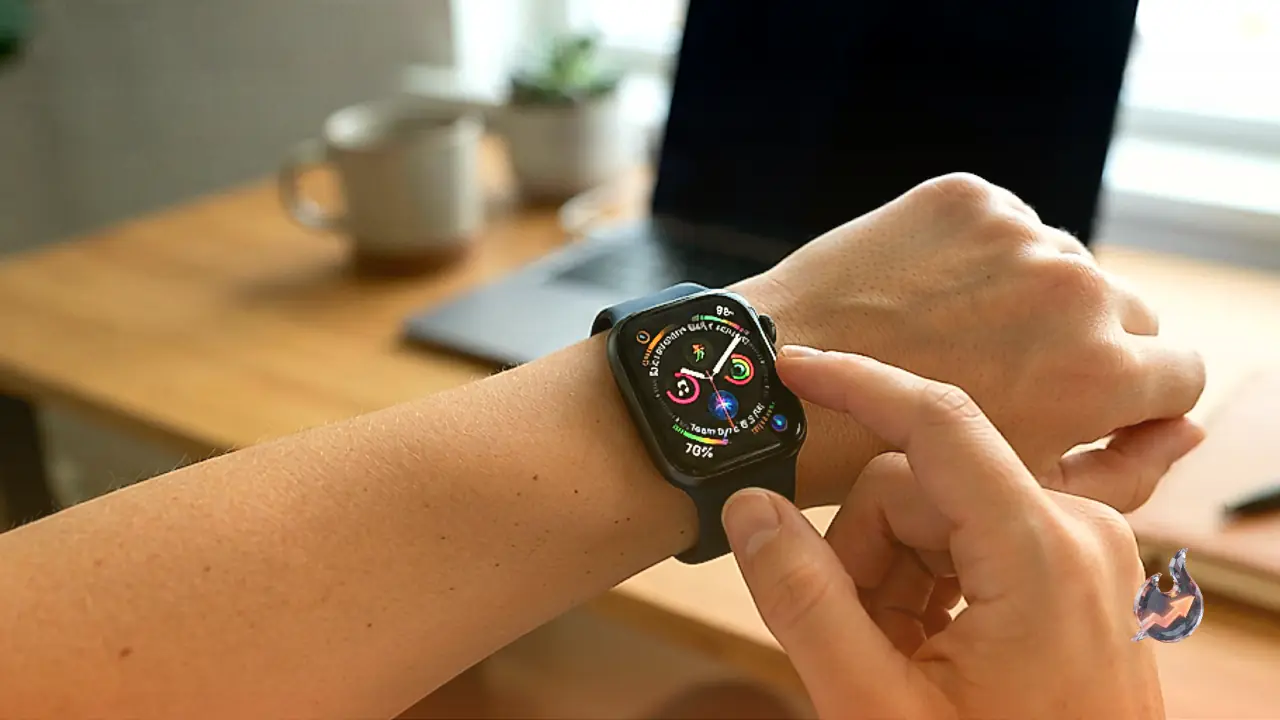
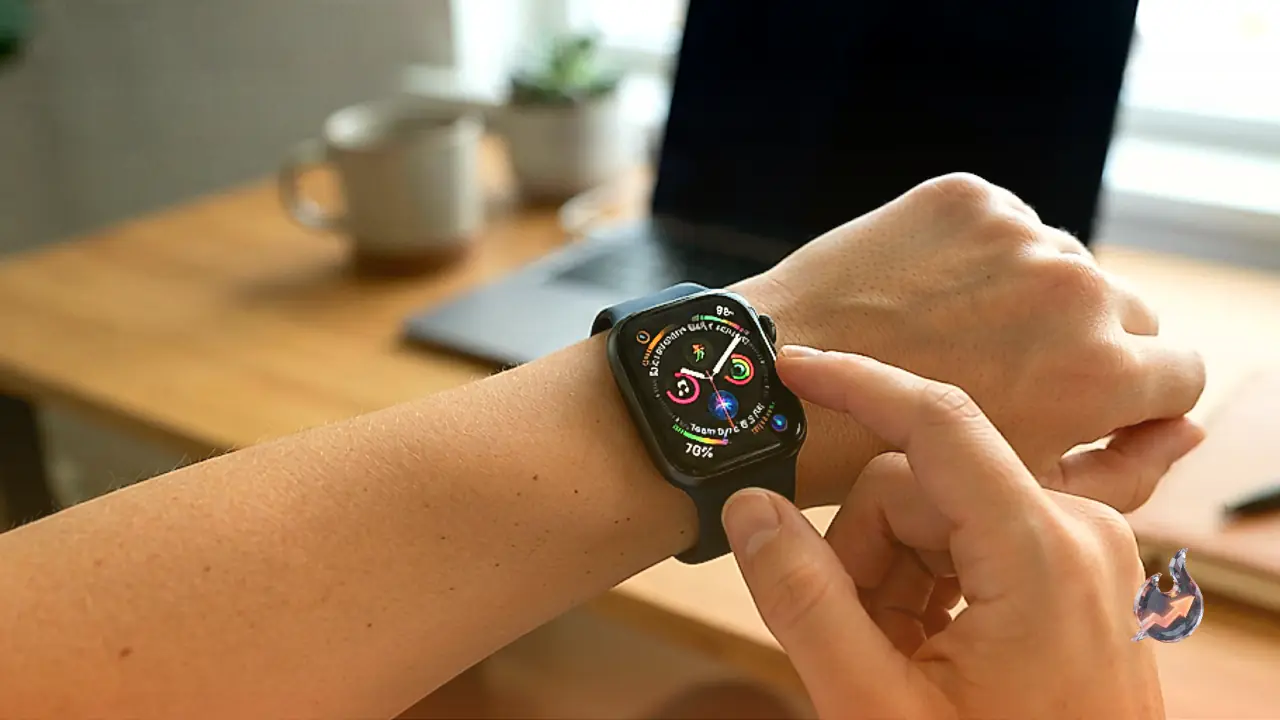
Apple Watch Series 12 finally includes direct native step tracking, eliminating the reliance on third-party pedometer applications. This specific integration is restricted to the newest hardware devices. To display your daily step count directly on the main screen, long-press the active clock face to enter edit mode, select a complication slot, navigate to the Activity category, and choose Steps. This places a clear, low-power pedometer icon right on your display for instant progress tracking.
Optimize Siri Audio Recaps by Disabling Default Recording
The new conversation recap feature uses audio intelligence to transcribe and summarize discussions. However, leaving it active continuously creates privacy concerns and mixes unrelated audio contexts together, combining medical appointments with casual conversations, television audio, or shopping trips. Users should keep this feature toggled off by default within the Control Center, enabling it only before structured meetings or specific interviews. While currently operating under beta testing, broad availability is planned in upcoming updates.
To make generated recaps accurate, open the summary file shortly after a conversation concludes. Tap the three-dot overflow menu and choose Edit. Because the AI system avoids automatically tagging specific speaker names or certain personal details, manual editing allows users to insert missing names, correct misheard words, and structure bullet points while the conversation remains fresh in memory.
Master Hands-Free Wrist and Finger Gestures
Efficient watch navigation relies heavily on two motion-activated gestures. The wrist flick involves rotating your wrist sharply away from your body and back. This motion dismisses open notifications, closes active application windows, and immediately returns the screen to the primary watch face without needing screen touches.
The double pinch gesture allows control using the hand wearing the watch. By quickly tapping your index finger and thumb together twice, subtle muscular movements in the wrist trigger action responses. This gesture answers incoming calls, opens incoming alerts, or brings up the smart stack when on the main watch face. Consecutive double pinches scroll through smart stack cards, while a single pinch opens a selected card. Additional customized controls, such as assigning a full fist clench to trigger the Digital Crown or launch Siri, can be configured under Watch App > Accessibility > Hand Gestures.
Silence AI Siri Responses Instantly with a Palm Cover
The upgraded AI-based Siri system often provides detailed and verbose spoken responses. When a lengthy answer begins and audio output is no longer needed, place the palm of your opposite hand completely flat over the watch display. This physical cover gesture instantly cuts off Siri's speech output and reverts the display directly back to the clock face.
Switch Siri Output to Silent Text Responses
For situations requiring quiet operation, Siri can be configured to display text answers rather than reciting them aloud. On the paired iPhone, open Settings, select Siri, and tap Responses. Change the setting from Spoken Responses to Silent Responses. This configuration automatically syncs to the Apple Watch, allowing users to skim text answers quietly on screen without broadcasting audio in public or quiet environments.