























If you regularly use popular artificial intelligence tools like ChatGPT, Claude, or Perplexity, you are interacting with large language models, commonly known as LLMs. What many users do not realize is that these models can run locally on your own personal computer. The primary advantages of this approach are complete offline accessibility and enhanced privacy, as your data never travels to external cloud servers for review or analysis.
Understanding the Benefits and Trade-offs
Operating a local setup means you avoid monthly subscription fees charged by AI companies and bypass usage limits entirely. Numerous open-source LLMs are available for free download from industry giants like Meta and Google. While these local variants are typically not as advanced or lightning-fast as paid commercial applications, they remain fully capable of handling everyday tasks, allowing you to swap between different models as needed.
This method does require more active maintenance and sacrifices some of the seamless convenience found in standard web apps. For instance, you must handle software updates manually. However, the tradeoff grants you a deeply personalized and completely private artificial intelligence system under your absolute control, and getting started is remarkably straightforward.
Hardware Specifications and Operating Systems
You can run local LLMs across Windows, macOS, and Linux, though macOS is frequently favored by AI enthusiasts. Apple computers offer a unified and consistent environment since a single company manufactures them, and Apple Silicon chips integrate the CPU, GPU, and RAM efficiently, which local AI architectures leverage effectively.
Regardless of your chosen platform, having ample system memory is critical. The absolute baseline requirement is 8 GB of RAM, though this restricts you to smaller model sizes and slower processing speeds. Sixteen gigabytes offers a much better experience, while 32 GB or more is necessary for the largest and most sophisticated models. For optimal performance, a dedicated GPU equipped with substantial VRAM makes a noticeable difference, as video memory is specifically optimized for parallel AI processing tasks.
Windows users benefit significantly from a dedicated NVIDIA graphics card. Graphics processors handle AI computations far more efficiently than standard central processors, which explains the close relationship between hardware manufacturers and the broader artificial intelligence expansion. These discrete cards include dedicated memory, giving local models ample space to process complex queries.
While there is no strict minimum specification, maximizing your system memory and utilizing a dedicated graphics card will dramatically improve performance. Beyond hardware, you need specialized interface software along with the model itself, and numerous choices exist for both categories.
Choosing Software and Finding Models
For beginners entering the local AI space, LM Studio Bionic is widely regarded as an excellent application choice for both Windows and macOS, and it remains free to use. Other respected alternatives include vLLM, Llama.cpp, Ollama, and GPT4All, all of which support multiple operating systems. These applications tend to be slightly more technical in nature.
Once you select your interface software, the next step involves choosing an LLM. The application programs will guide you toward various choices, alongside online repositories like Hugging Face, which hosts more than 3 million distinct models.
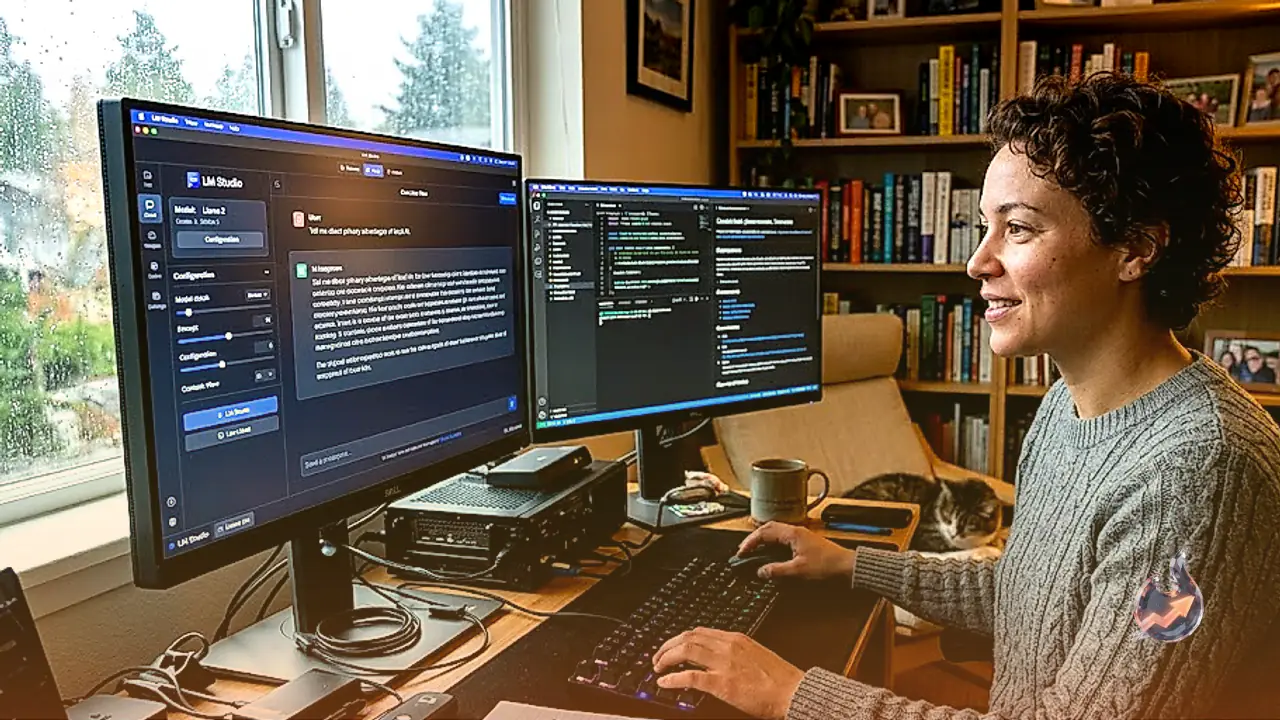
To demonstrate the workflow, setting up LM Studio Bionic on Windows provides a clear picture of the process. After downloading the installer from the official website and launching the program, click Create Project and assign a name to your workspace.
A blank conversation window will appear. Clicking Choose a model inside the prompt box and selecting Get local models redirects you to the main model repository within LM Studio Bionic. Each available model displays its file size, popularity metrics, and descriptive details, with staff recommendations highlighted for beginners. Smaller models download faster and consume less storage space, though they possess fewer capabilities.
Inside the active chat interface, operation mirrors standard online chatbot applications. The bottom prompt box lets you switch between installed LLMs, while a plus icon on the left permits image and file uploads if the active model supports multimodal inputs.
The left-hand navigation pane allows you to toggle between different projects. Accessing the settings link in the bottom-left corner opens the preference screen, where you can customize software behavior, interface elements, and chat deletion rules.
Navigating to the library section within settings lets you manage downloaded models, while the explore menu helps discover new options. Users requiring document and image understanding should search specifically for multimodal models, which build upon traditional LLM architectures.
Finally, the right-hand sidebar, toggleable via the top-right corner button, provides advanced tools for managing files across workspaces and granting the application controlled access to your local computer file system when necessary.