
























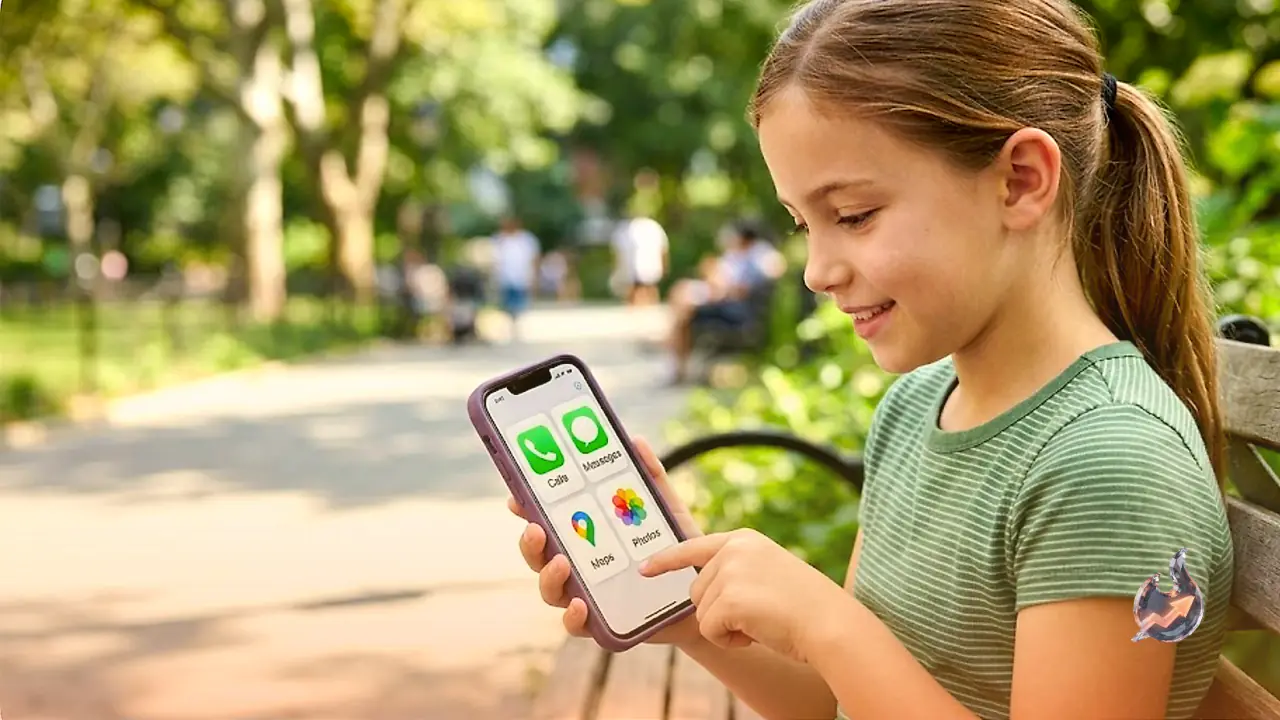

A father facing a familiar back to school problem, a young son who will have to walk to and from school alone starting this September, has found a way to hand the child a phone that can call, text, and pin his location without opening the door to the internet or social media. Instead of a paid app or a stripped down feature phone, the fix came from a setting buried inside Apple's own accessibility menu.
A Phone Without a Phone's Risks
The child is too young for unrestricted internet or social media access, but a tracking tag alone would not be enough once he is walking around town without a parent. A classic Nokia handset that only makes calls and sends texts would not help either, since it cannot run maps or satellite navigation, both of which need a data connection. What was needed was, in effect, a smartphone that behaves like it isn't one.
Standard Apple Restrictions Don't Actually Block the Web
Because the family already relies on Apple devices, the first attempt was to lock the child's Apple account down using Apple's own restrictions. That plan fell apart almost immediately, it turns out to be impossible to fully block Safari on iOS. Restricting access to the Safari app itself is possible, but children quickly find workarounds, such as asking a friend to send them a link over text, which can open in a browser and bypass the restriction entirely.
Paid Apps That Charge to Remove Features
Third party options exist too, including an app called Dumb Phone for iPhone owners and Minimalist Phone for Android users. The frustration with these tools is that they charge a fee for the privilege of taking access away from a phone, not adding anything, simply removing it. Paying a company to strip functionality out of a device that already has it did not sit well.
A Feature Apple Rarely Talks About
The eventual answer was a setting called Assistive Access, which Apple introduced with iOS 17. Apple built it for people with cognitive disabilities, and it transforms the entire iPhone experience, fewer options, more focused functions, and a much simpler layout to navigate. The look is well suited to children too, with large, friendly tiles for each app replacing the smaller icons of the standard Apple interface.
Setting Up Assistive Access
Turning it on involves opening Settings, tapping Accessibility, scrolling all the way down to the General section, and tapping Assistive Access. From there, tapping Set Up Assistive Access and then Continue starts the process. The next step asks whether the layout should show rows or a grid, with the grid option recommended since it produces the oversized tiles. After that, the system asks which apps should be allowed, and each one is switched on by tapping the green plus icon beside it.
Locking Out the Internet for Real
The crucial difference from Apple's standard screen time controls shows up here, it is possible to block internet browsing completely simply by never adding Safari, Chrome, or any similar app to the allowed list. Unlike ordinary screen time restrictions, even a link sent directly to the child in a text message will not open. That is because Assistive Access is built to stop accidental navigation, so it restricts unexpected web browsing by design. Any link that arrives inside Messages is treated as plain text rather than a clickable link, which keeps the child from accidentally leaving the simplified interface. Internet access is technically possible inside Assistive Access, but it is heavily restricted and switched off by default, and a caregiver has to specifically add an internet capable app, such as Messages, Safari, or another web based app, before any of it becomes available.
Choosing Who Can Call and Text
Adding Messages or Calls to the allowed list brings up a further choice, whether the child can be contacted by, or reach out to, everyone, only saved contacts, or a shortlist of chosen favourites.
Small Details That Make a Big Difference
The customisation goes further still. Calls can be set to show a keypad or a speaker option. The lock screen can be set to display the time or not. The mute switch on the side of the phone can be disabled entirely. How notifications appear can also be controlled. The Music app is limited to only the playlists a parent approves in advance. Assembling a suitable set of rules takes only a few taps.
A Passcode Keeps Kids From Escaping the Mode
Once the allowed apps and rules are set, Assistive Access is locked behind a unique four digit passcode, which is what turns the simplified mode on and off. Getting out of Assistive Access requires triple clicking the side button on iPhones with Face ID, or the Home button on older iPhones with Touch ID, which brings up a prompt for that passcode before the device reverts to the normal iPhone interface.
One Real Six-App Setup
In this particular case, the child's iPhone was set up with exactly six apps, Calls, Messages, Maps, Camera with the selfie option deliberately switched off, Photos, and Music. Nothing else. The device itself was an old, unused iPhone 13 that had been sitting in a drawer, turned into what amounts to the best six-app dumb phone that money did not have to buy, a welcome outcome given how high Apple's prices have climbed.
Built to Grow With the Child
The setup is not fixed forever. There are plans to consider adding Wallet so the child can pay for things using his Acorns Early account. If Safari, Spotify, or a game or two need to be added later, that only takes a single visit back into the Assistive Access settings. And because there is no known workaround, a child cannot do anything that requires navigating the standard iOS Settings app or any other system level interface unless they know the Assistive Access passcode, meaning whatever a parent decides is off limits stays off limits.
Even Apple's Own Staff Were Surprised
After setting the phone up, there was a lingering worry that something important had been missed, since the solution seemed almost too good. Taking the iPhone into an Apple Store and showing it to a support staff member produced a reaction worth noting. What have you done, the staffer said, looking at the six dumb tiles on the child's iPhone. This is a much better solution than Screen Time, I'm going to have to tell my colleagues about this. Told that the feature was Assistive Access, the staffer admitted, We don't get trained on that, but this is great.
Why Won't Apple Promote This?
It remains odd that Apple does not train all of its retail staff on a feature capable of doing this much, and stranger still that the company does not actively promote Assistive Access as a way to build a child's phone. Apple was asked directly why it does not market this buried feature in that way, and whether it has ever considered building a dedicated version of Assistive Access aimed at children, in effect a kids' operating system. Apple assisted with technical questions about how the feature works but declined to answer those specific questions. Notably, the redesigned Screen Time arriving with iOS 27 this September borrows some of Assistive Access's key strengths, including, for the first time, the ability to remove access to Safari when setting up a child's profile.
The Catches to Know About
Assistive Access is not flawless. The mode runs sluggishly, though a child excited simply to have a phone at all may not notice or care. More significantly, it does not recognise Screen Time limits and will override them completely, which matters if apps like Safari or WhatsApp are ever added to the allowed list. It will be worth comparing Assistive Access against the new Screen Time redesign once that arrives. There is also no way to power off an iPhone while it is in Assistive Access mode, the device has to be switched back to normal iOS first to do that.
A more concerning glitch surfaced on one occasion, when the child managed to freeze the Messages app while scrolling through a long list of emojis during a search. The freeze was repeatable when shown again afterwards. The only fix was taking the phone out of Assistive Access mode and putting it back in, something the child cannot do without the passcode. The other five apps kept working normally the whole time Messages was frozen.
Beyond that one bug, no other problems have turned up, apart from the now familiar worry of a child misplacing an expensive iPhone. At least it can be tracked down, just as it was recently after being left behind at school.