






















Apple dropped support for 32-bit games back in 2019 with the release of macOS Catalina, leaving a significant portion of older indie games unplayable on Macs. Next year, the situation is set to get even trickier as macOS drops support for running Intel Mac applications, potentially leaving additional titles behind despite Apple claiming certain older games will keep working.
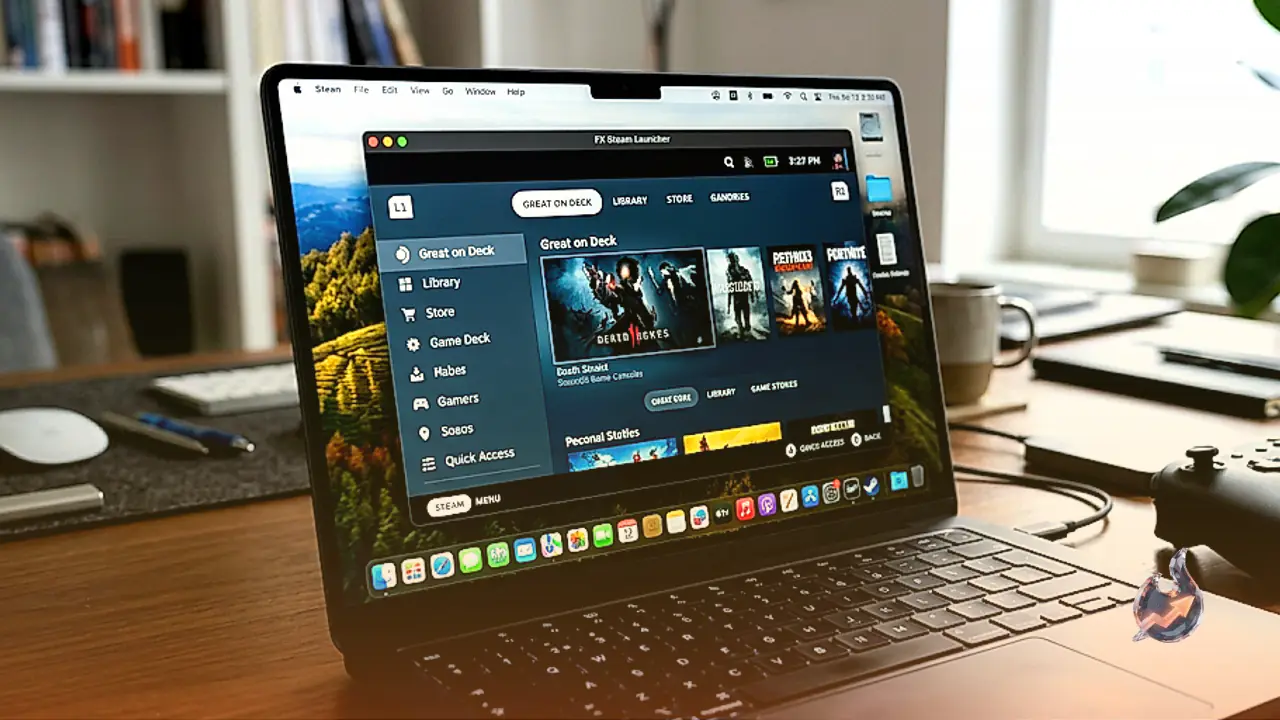
Fortunately, there is an alternative method available for users looking to expand their gaming options. A free, open-source application called FX Steam Launcher boots the ARM version of SteamOS, which is the operating system powering Valve's Steam Deck, directly on a Mac through a combination of a virtual machine and compatibility layers. To use this setup, you will need a Mac powered by an Apple Silicon processor running macOS 15 or later, as Intel Macs are not supported.
The setup process is straightforward and does not require advanced technical knowledge. To get started, you simply download the application, mount the DMG file, and drag the app into your Applications folder. The first time you launch the software, a pop-up window will offer to download and install SteamOS inside a virtual machine automatically.
Users then click Create New Disk and answer a few simple setup prompts, with the most critical step being the hard drive allocation size. While the default size is set at 64 GB, which works fine for many users, expanding this space is recommended if you plan on installing multiple large games. You can also designate a specific drive location and set a password to secure your SteamOS environment.
Once you click Create, the application downloads SteamOS and completes the virtual machine installation. During this waiting period, users can pair a game controller with their Mac via System Settings under Bluetooth. The FX Steam Launcher supports a wide array of current gamepads, including Xbox, DualSense, DualShock, and Made for iPhone controllers.
Eventually, the login screen appears where you can input your Steam credentials to access your library. The virtual environment functions much like a physical Steam Deck, sorting your library into titles confirmed to work on SteamOS and those that might require extra tweaking. Many games launch immediately with full gamepad compatibility.
This tool is not a universal fix for every title because SteamOS itself can be finicky, especially running inside a virtual machine. Certain games require minor graphics adjustments, and titles like Psychonauts required downloading a user-made patch for proper controller functionality. When performance issues arise, searching online communities for solutions used by actual Steam Deck owners usually provides a fix.
Hardware limitations do apply, particularly when using lighter hardware like a MacBook Air, as a virtual machine cannot access every ounce of the host machine's raw performance. However, community-compiled compatibility lists help players verify whether their favorite titles run smoothly before diving in. This approach proves significantly easier than older legacy methods involving unsupported versions of Wine.
Sideloading non-Steam games is also possible by booting into Desktop Mode found within the SteamOS sidebar under Power. This opens a Linux-based desktop environment complete with a web browser, allowing users to download files, place them in custom folders, and point Steam toward them. Power users can further customize their experience by accessing the FX Steam Launcher settings via the menu bar or the Command-comma keyboard shortcut to adjust resolution, audio configuration, and game statistics.