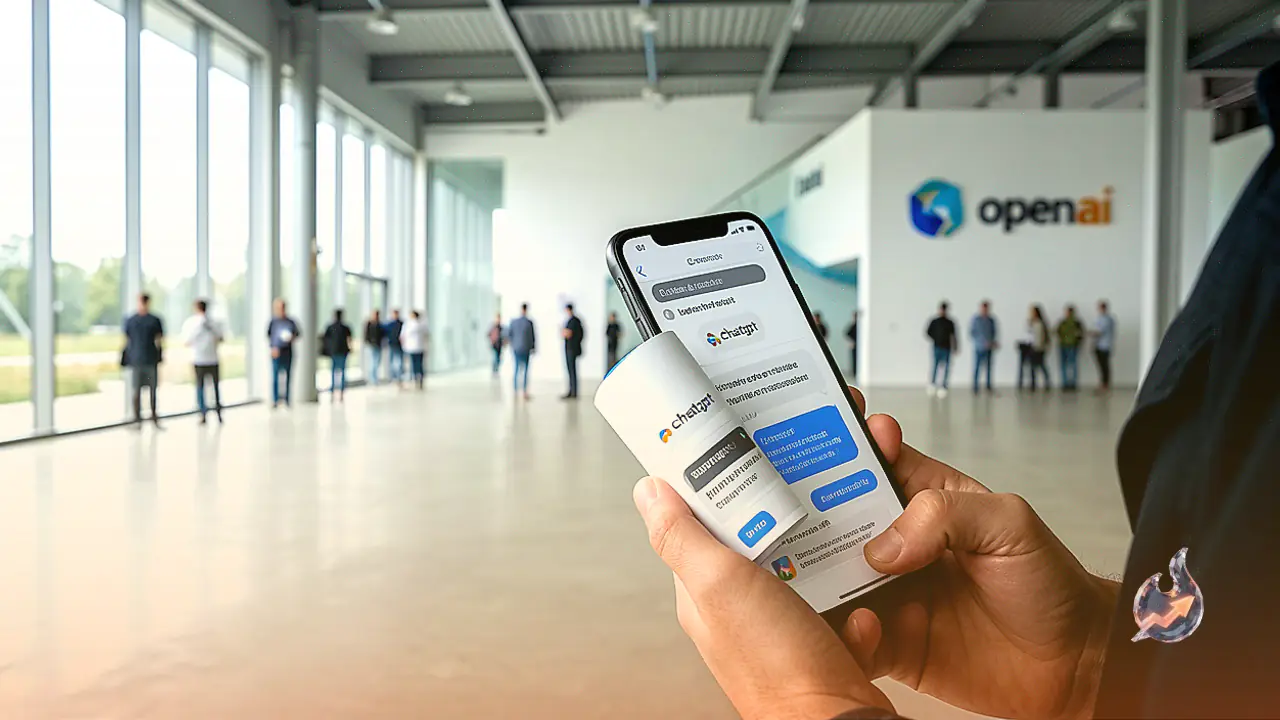

























OpenAI has introduced a new desktop capability named Computer History for users accessing ChatGPT on macOS. This feature allows the artificial intelligence application to maintain a comprehensive record of actions performed on a Mac computer, provided the user holds an eligible account subscription. With this feature active, users can query the chatbot regarding recently handled projects, analyze personal work patterns, and transform frequently repeated manual workflows into automated tasks. For instance, after returning from a short break, a user can prompt ChatGPT to identify which document was being edited earlier. Similarly, the tool can assist in locating misplaced planning files or reference materials viewed earlier in the day.
Operational Mechanics and Contrast with Screen Recorders
Unlike continuous display snapshot systems such as Microsoft Windows Recall, Computer History does not capture screen images, record video, or tap into system audio and microphones. Instead, the mechanism collects structured interaction logs strictly from sources specified by the user. Every mouse click, keypress, keyboard shortcut invocation, and application switch is logged by the system. Furthermore, Computer History retrieves contextual information from macOS accessibility processes to enhance the accuracy of its records. OpenAI notes that this gathered information is periodically compiled and saved as both textual summaries and local memory files on the user host machine.
Privacy Architecture and Granular Controls
To address privacy considerations, Computer History is configured as an opt-in feature by default, meaning it remains completely inactive until manually enabled by the user. Even after activation, global tracking is not enforced. Users retain full authority to select precisely which desktop applications and web destinations ChatGPT is permitted to monitor. Data collection can also be paused instantaneously from the macOS menu bar at any point. Furthermore, sessions conducted within private or incognito browser windows are strictly excluded from logging. The platform offers independent configuration toggles for workspace permissions, individual opt-ins, memory functions, and app-specific filters.
Cybersecurity Considerations and Server Processing
Despite OpenAI assertions that data files are stored in isolated locations separate from other applications, official documentation acknowledges that Computer History stores sensitive operational information locally without encryption. Consequently, any executable program running under the active macOS user privilege context could potentially access these unencrypted memory files. Additionally, activating the tracking system elevates exposure to prompt injection vulnerabilities, as ChatGPT might process and execute malicious instructions encountered on tracked websites or desktop interfaces. While OpenAI processes certain files on remote servers to generate contextual memories, the company states these files are discarded after processing unless retention is mandated by law, and they are not utilized for model training unless explicit data-sharing permissions are granted by the account holder.
Activation Requirements and Configuration Guide
Accessing Computer History requires specific subscription tiers. Enterprise and Business workspace accounts require prior administrative approval before activation, whereas individual account owners must hold an active ChatGPT Pro subscription. Qualifying users can initiate setup by opening the ChatGPT desktop application on macOS, navigating to Settings, and selecting the Integrations menu followed by Computer History. After toggling the primary switch to the active state, users must ensure the core Memories feature is enabled, as contextual chat updates depend on it. Within Settings under Computer history and Permissions, options exist to explicitly define excluded applications, excluded websites, or restricted inclusion lists. Tracking status can be managed or paused at any time via the Mac menu bar interface.
Data Inspection and Erasure Controls
In addition to asking ChatGPT conversational questions regarding past computer activity, users possess the ability to manually inspect the collected dataset. By accessing Settings, selecting Computer history, and viewing the History sub-menu, users can examine local summary files directly. The interface provides granular options to delete individual recorded items or purge activity history across specific custom timeframes, mirroring standard web browser clearing controls.