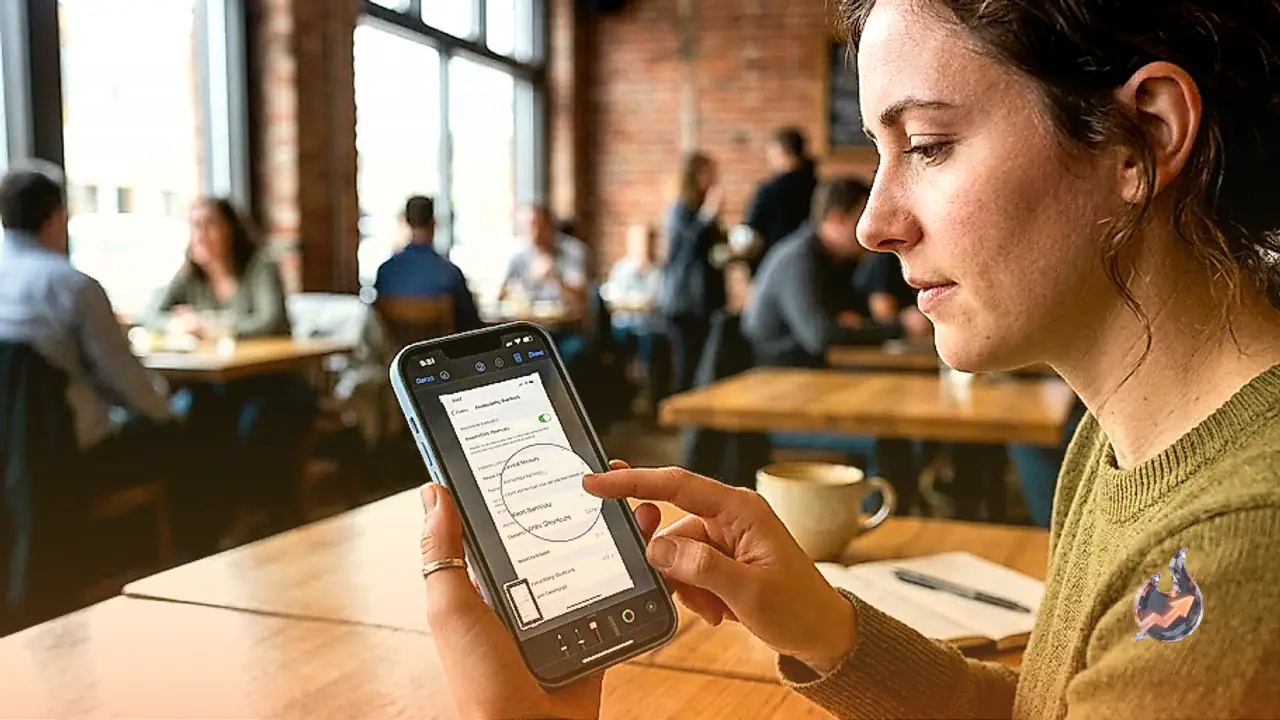
























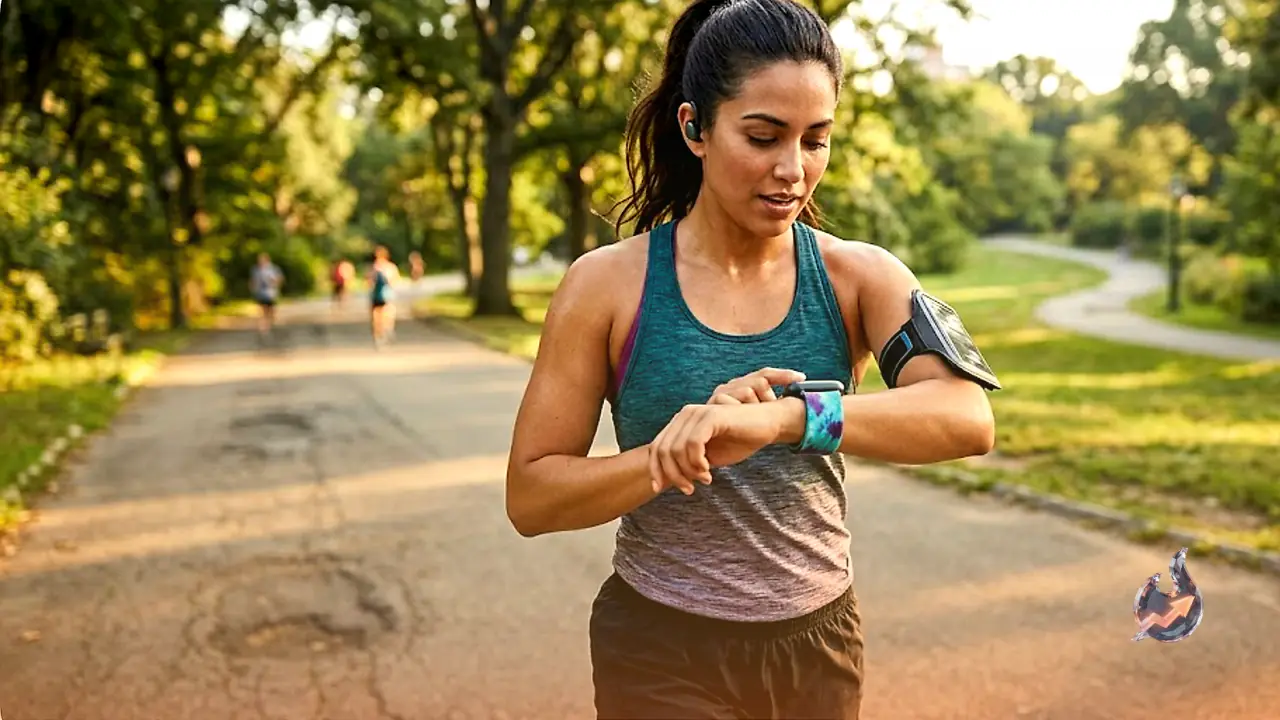

The Fitbit Air, the screenless strap-style fitness tracker that Google now sells as part of its Health lineup, is arguably the easiest fitness band for most people to live with day to day. That doesn't mean it can't be improved. A handful of tricks can make the strap more comfortable to wear in unusual spots, on almost any part of the body, sharpen its accuracy, and help you dodge some of the software's more annoying habits. None of them require extra hardware beyond what most people already own, just a different setting, a different app, or a slightly different way of wearing the strap. Here is a rundown of ten fixes worth trying.
Broadcast your heart rate to Strava for a real workout screen
The Fitbit Air automatically detects when you start exercising, but if you want live numbers for your heart rate or elapsed time, you have to launch a workout from your phone instead. The trouble is that the Google Health app's workout screen is sparse: it shows only total time, heart rate, and, if you're running outdoors, distance covered. iPhone owners get an even thinner experience, since there's no live activity on the lock screen to show the workout is still running, just a notification that reads something like "run" and is easy to lose track of.
Strava solves this by giving live workouts a much richer screen, and the Fitbit Air can feed it heart rate data directly. To set it up, open the Google Health app and tap the device icon in the upper left corner, then tap the Fitbit Air and choose Share Heart Rate. Setting that option to Always Visible is one way to make sure the broadcast is active, though it should work without flipping that switch too. In the Strava app, tap Record to reach the workout screen, swipe up for more options, tap Add a Sensor, and select the Fitbit Air. Once the workout starts inside Strava, the heart rate reading appears right there in your stats. Recording through Strava instead of Google Health also adds a live map of your route, lets you pull in routes saved in your Strava library, and shows lap pace and lap distance alongside your overall pace and distance; on runs, you can even tap a button to mark laps as you go. For anyone who runs or cycles regularly, that extra layer of detail, the map, the lap splits, the live pace, can make the difference between a workout you can actually analyze afterward and one where all you're left with is a single average number.
Turn the Fitbit Air's band into a mechanical watch strap
This is probably the most talked-about Fitbit Air trick online, though it comes with enough caveats that it isn't for everyone. The stock band is an 18 millimeter nylon strap, thin enough to slide under the spring pins of almost any watch, which means you can wear the sensor and its strap in place of your regular watch band on a favorite mechanical watch.
It works best under a fairly specific set of conditions: the Obsidian, or black, Fitbit Air band, a mechanical watch with 18 millimeter lugs, and a wearer with a fairly large wrist. If your watch takes a wider strap than 18 millimeters, you'll end up with visible gaps between the strap and the watch case. If your wrist runs small, there may not be enough room to fit the watch, the Fitbit sensor, and the velcro closure all onto the same strap at once. Accuracy can also take a hit, because this setup pushes the Fitbit sensor toward the underside of the wrist, where it doesn't sit flush against the skin. Even so, if your watch and wrist size cooperate and you're not fussy about precision, it's a good way to combine the two devices. The basic steps are: take the band off your mechanical watch, lay the Fitbit Air's nylon band across the back of the watch with the outside of the strap facing the case, then push the watch's original pins through the watch lugs to pin the Fitbit band in place. That leaves the Fitbit sensor and the watch sharing one strap; put it on and slide the watch head around your wrist until it sits comfortably. It's a hack built more for looks than for lab-grade accuracy, so treat it as a style choice rather than a serious training tool.
Mute the Google Health Coach when it gets overbearing
The centerpiece of the Google Health app is an AI feature called the Google Health Coach. It opens every morning with a few paragraphs summarizing your sleep and suggesting how the day ahead should go, then checks in periodically with updates on your goals or comments on a recent workout. Because the Coach is meant to feel like a built-in trainer, it leans on frequent notifications and long blocks of text, which is exactly what makes it easy to tune out or find intrusive. Online forums where Fitbit Air owners gather are full of complaints about the Coach getting things wrong or chiming in with the wrong message at the wrong moment.
The good news is you don't have to wait out a Premium subscription to silence it. Tap your profile picture in the upper right corner, then tap Your Data in Google Health, then Manage Feature Privacy Controls, then Google Health Coach, and switch it off. That's it, the app goes quiet. If you ever want the Coach back, the toggle above won't reappear once it's disabled, so instead tap the "ask coach" button in the bottom right corner of the app, which is the only place the option to re-enable it shows up.
Get a more accurate step count
The Fitbit Air counts steps by tracking wrist movement, which is a reasonable enough method since your arms naturally swing when you walk. The downside is that ordinary hand movements can register as steps even while you're sitting still, inflating the count. That overcounting problem is common to most wrist-based trackers, since any sensor that relies purely on arm motion struggles to tell a genuine step from a stray gesture. Wearing the band on your non-dominant hand, for instance the left wrist if you're right-handed, cuts down on that kind of overcounting. If it still runs high, open device settings, tap Device Preferences, and set Wrist Preference to Dominant, even though you're actually wearing it on the non-dominant side. That mismatch nudges the algorithm toward undercounting instead, which helps balance things out.
Add exercises to a strength workout after you've finished
The Fitbit Air can log strength training, but it needs to know which exercises you did, and typing all of that in mid-set is tedious. There's a workaround: start a strength session on the band without worrying about specifying exercises, then end and save the workout as usual. Afterward, open the Coach and upload a photo that documents what you did, a picture of a whiteboard if your class posts the workout there, a screenshot from an app like Hevy if you logged it digitally, or a photo of a paper notebook if that's how you track things. You can also just describe the workout in your own words if you remember it. Whichever method you use, the Coach reads the image or description and attaches the exercises, sets, and reps to the saved workout, and it has proven fairly reliable at getting that information right. It saves you from having to stop mid-set to scroll through a list of exercises on a tiny screen, while still leaving a full record for later.
Dye the band a color you actually like
Fitbit Air bands only come in a handful of colors, and some of the names are a little misleading, the shade called "Lavender" is really a bright blue, and "Fog," a blue-gray tone, appears to be sold out at the moment. If you're stuck with a color you don't love, Rit DyeMore Synthetic dye has been reported by a Redditor to work well on the band. Overdyeing is never entirely predictable since the result blends the original color with the dye, but it's a reasonable gamble if you're willing to experiment. Since Fitbit doesn't officially support dyeing its bands, this remains an unofficial, trial-and-error fix rather than a guaranteed method.
Rebuild your dashboard from scratch
The top of the Fitbit app's home screen holds a row of tiles along with a circular progress graph tracking steps or cardio load. There's plenty you can choose to display there, but the layout isn't easy to edit. New tiles simply get added to a second, overflowing screen, and there's no direct way to reorder tiles that are already placed unless you painstakingly remove and re-add each one in the sequence you want. The simpler route is to just clear the whole thing out: tap the minus button on every tile, including the ones that spilled onto the overflow screen, and then add back only what you actually want, in the order you want it. You're not required to keep the large circular graphs either, you can drop them entirely or keep two of them side by side if that suits you better. It's a small quality-of-life change, but for anyone who checks their stats throughout the day, not having to scroll past clutter adds up.
Stick the sensor to your arm for a week straight
Until a proper bicep band exists, people have found their own workarounds for wearing the Fitbit Air somewhere other than the wrist. Some have 3D-printed adapters that let the sensor click into a Whoop strap, while others improvise with velcro straps or a spare band used as an extender. The simplest option, though, is to skip straps altogether and stick the sensor directly to the skin with a long-lasting adhesive. KT tape, the same kind used for sore joints, works reasonably well for this, and the same style of overpatch used to hold continuous glucose monitors in place is another option. Both are built to stay attached for a week or more, so once you find a comfortable spot, you can leave it be. None of these solutions are official Fitbit accessories, they're all workarounds built by the community to cover a gap in the product lineup.
Pair a Pixel Watch alongside the Fitbit Air to swap between them
The Google Health app won't let you connect two Fitbits at the same time, but it will happily pair with one Fitbit and one Pixel Watch simultaneously. That opens up an option for anyone with an old Pixel Watch sitting in a drawer: bring it back for workouts, where you can glance down and see live heart rate and pace right on your wrist, then switch back to the Fitbit Air for the rest of the day and for sleep tracking. The Google Health app merges the data from both devices into one seamless set of metrics. It's a practical way to get more use out of older hardware rather than leaving a Pixel Watch idle in a drawer.
Wear the band higher on your wrist for better readings
Fit matters for any fitness tracker, but it matters more for the Fitbit Air than most, because a bigger sensor is naturally better at blocking out ambient light. With a sensor as small as the one on the Fitbit Air, even slight unevenness in the fit can let stray light reach the optical sensor and throw off its readings. The fix is straightforward: instead of positioning the band right at the wrist hinge or just above the wrist bone, move it up an inch or two toward the elbow and cinch the strap snug. That placement produces noticeably more accurate heart rate numbers during a workout, and once you're done exercising, you can simply loosen it again for a more comfortable everyday fit. It's a small adjustment, but for optical heart rate sensors in general, positioning is often the single biggest factor separating an accurate reading from a noisy one.
Taken together, these ten adjustments turn a fairly simple screenless tracker into something considerably more flexible, whether that means richer workout data, a more accurate step count, a strap that fits an unusual wrist, or a Fitbit Air that finally looks the way you want it to.