























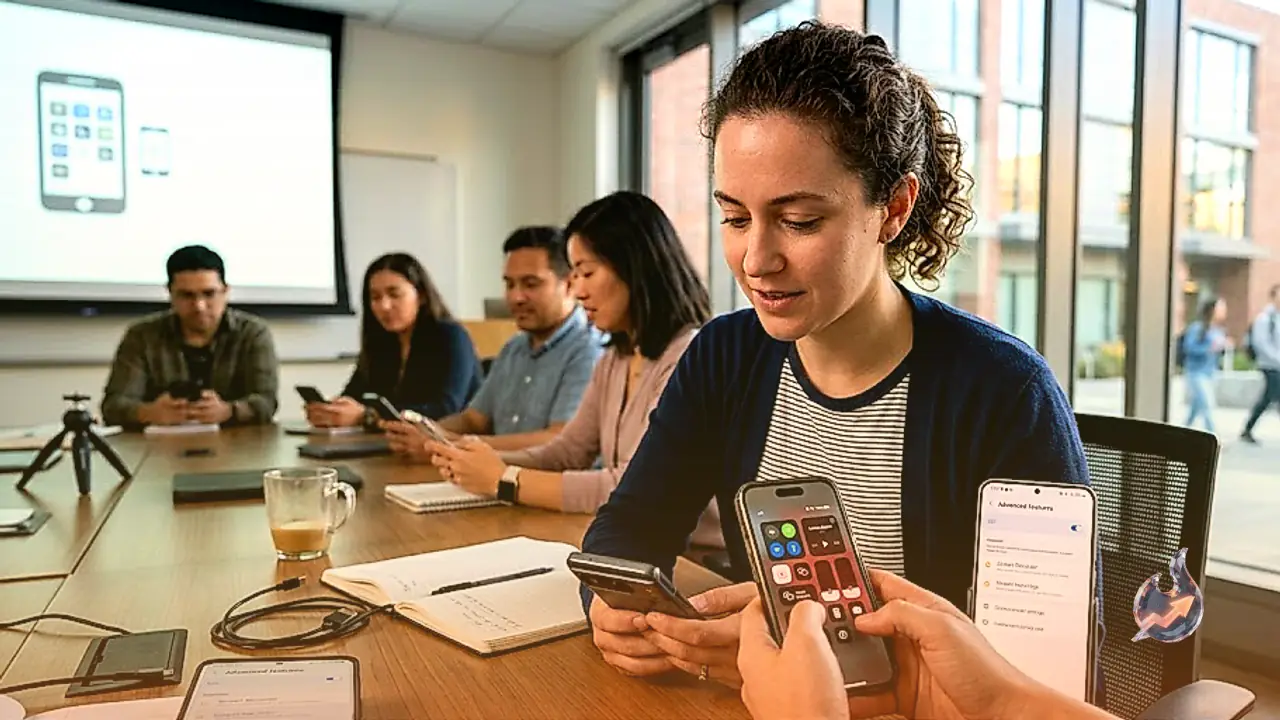

Capturing your mobile display as a dynamic video has become an essential utility for modern smartphone owners. Whether the objective is building technical walkthroughs for a video streaming platform, showing an acquaintance how to troubleshoot complex device preferences, or creating concrete proof of an elusive mobile gaming high score, a video clip offers far more context than a static screenshot. Modern mobile operating systems have integrated straightforward native utilities to facilitate this process without requiring complicated third-party setups across major hardware lines.
How to Capture Display Video on Google Pixel Handsets
Users operating a Google Pixel can initiate display capture through a quick set of gestures. Begin by unlocking the smartphone, then perform a two-finger downward swipe from the upper boundary of the display to expose the comprehensive Quick Settings layout. Within this grid, locate the dedicated Screen recorder widget. If the icon does not appear immediately, swipe horizontally across the panels to check adjacent panes. Should the tool still remain missing, tap the pencil icon positioned near the bottom right area to manually introduce the Screen recorder toggle into your active Quick Settings array.
Tapping this widget opens an extensive configuration overlay featuring several toggles. These controls allow users to determine whether visual touch indicators should appear on the finished footage whenever a finger contacts the screen. Additionally, the menu provides an option to activate a selfie camera overlay, which embeds a front-facing video feed in the corner to assist those offering spoken explanations or reaction commentary. Users can also configure sound sources by deciding whether to incorporate internal app audio, external microphone pickup, or both.
A dropdown selection menu located at the peak of the configuration window allows you to select between recording the entire operating environment or restricting the capture strictly to an individual active app. Once the desired parameters are locked in, press Start. Following a brief countdown sequence, recording begins automatically. To terminate the session, tap the red recording timer located inside the top status bar and select Stop. The processed video file automatically deposits into Google Photos.
Recording the Screen on Samsung Galaxy Smartphones
For individuals handling a Samsung Galaxy device, the procedure follows a comparable structure with proprietary interface touches. Unlock the phone and pull down from the top of the display once, followed by a second downward pull over the primary panel containing regular toggles like Wi-Fi and the flashlight. This extended swipe brings up the full Quick Settings layout where the Screen recorder icon resides.
Selecting this icon triggers a specialized preferences pane. Samsung permits creators to alternate between capturing the full screen or defining a partial screen boundary for tailored video areas. The audio configuration pane presents three discrete choices: None (silent capture), Media (capturing only the internal sound generated by running applications), and Media and mic (recording simultaneous internal device sound alongside external speech from the microphone). A separate toggle switch is provided to highlight touch inputs and finger taps throughout the recording.
When ready to proceed, select Start recording. The system initiates a short numeric countdown before commencing video capture. During an active session, an overlay tool palette hovers in the corner of the display. This floating interface provides on-the-fly utilities to draw annotations directly onto the screen, superimpose the front-facing selfie camera, or temporarily pause and permanently halt the recording. Once the stop control is engaged, the finished recording saves straight into Samsung Gallery as well as Google Photos if that service is present on the device.
Utilizing the iOS Control Center on iPhone Models
Initiating a screen capture session on an iPhone requires navigating into the iOS Control Center. Swipe downward starting from the top right corner of the display panel to reveal the controls, then locate the circular screen recording icon characterized by a solid inner circle surrounded by an outer ring. If this utility has been excluded from the Control Center layout, tap the plus button positioned in the upper left corner to restore the recording shortcut to the active pane.
Interacting with the recording icon offers two distinct workflows. A single standard tap triggers a three-second countdown that immediately launches full display recording. Alternatively, executing a long press (press and hold) on the icon opens an expanded selection menu where creators can route the video stream directly into supported third-party destinations such as Facebook or WhatsApp, bypassing the default local storage routing to the Photos app.
The long-press interface also houses the toggle control for managing the iPhone microphone audio input. Native internal sound produced by the handset is included automatically by default. When you wish to conclude the session, tap the prominent red recording indicator displayed at the head of the screen and confirm by tapping the red stop button. The completed video file is then cataloged directly within the Photos application.
Third-Party Recording Applications and Platform Limitations
Beyond built-in operating system tools, several independent software utilities cater to specialized recording needs, though platform policies dictate their functionality. On iOS, stringent security and privacy architectures restrict the operational freedom of third-party software during background display recording. Most tools in the Apple App Store essentially tie directly into the underlying native recording framework. However, an application named Record It! provides value for those seeking to append spoken commentary and selfie camera reaction frames after the core capture is finished. Recording clips that exceed three minutes requires unlocking the Pro tier for $6.
The Android ecosystem enforces significantly fewer restrictions on background recording software, granting developers broader technical capabilities. AZ Recorder represents a long-standing tool in this segment, offering one-tap capture triggers, extensive video resolution settings, and integrated fundamental editing capabilities. To eliminate promotional advertisements and remove branding watermarks from exported files, the developer offers a Pro tier priced at $4.49 per month.
Another established Android utility is Mobizen Screen Recorder, which delivers a feature package mirroring its chief competitors. Users gain access to an interactive floating widget overlay to manage captures instantly, alongside built-in trimming tools and granular video output adjustments covering both screen resolution and refresh frame rates. Removing in-app advertisements and watermark overlays requires a subscription commitment of $3.35 per month.