
























Apple builds a laptop for just about everyone. The Neo is great value for anyone who mostly does light tasks, while the Air is the step up for a wider range of computing needs. The MacBook Pro, though, is Apple's most capable machine, its "premium" laptop. It ships with fans for active cooling, extra ports like HDMI and an SD card slot, and a mini-LED display with a high refresh rate. It's the best pick for professionals who need extra processing muscle, or for anyone who simply wants the Mac with the most features. Apple's newest MacBook Pros run beautifully straight out of the box, but if you stick with the default settings you're leaving a huge amount of potential untapped. So if you own a MacBook Pro, work through these 10 hacks, tips and tricks to squeeze everything out of your laptop. Most of the tricks for the MacBook Air apply here too, so those are worth a look as well for even more ways to push your Pro to its limits.
Treat Low Power Mode as an all-day battery booster
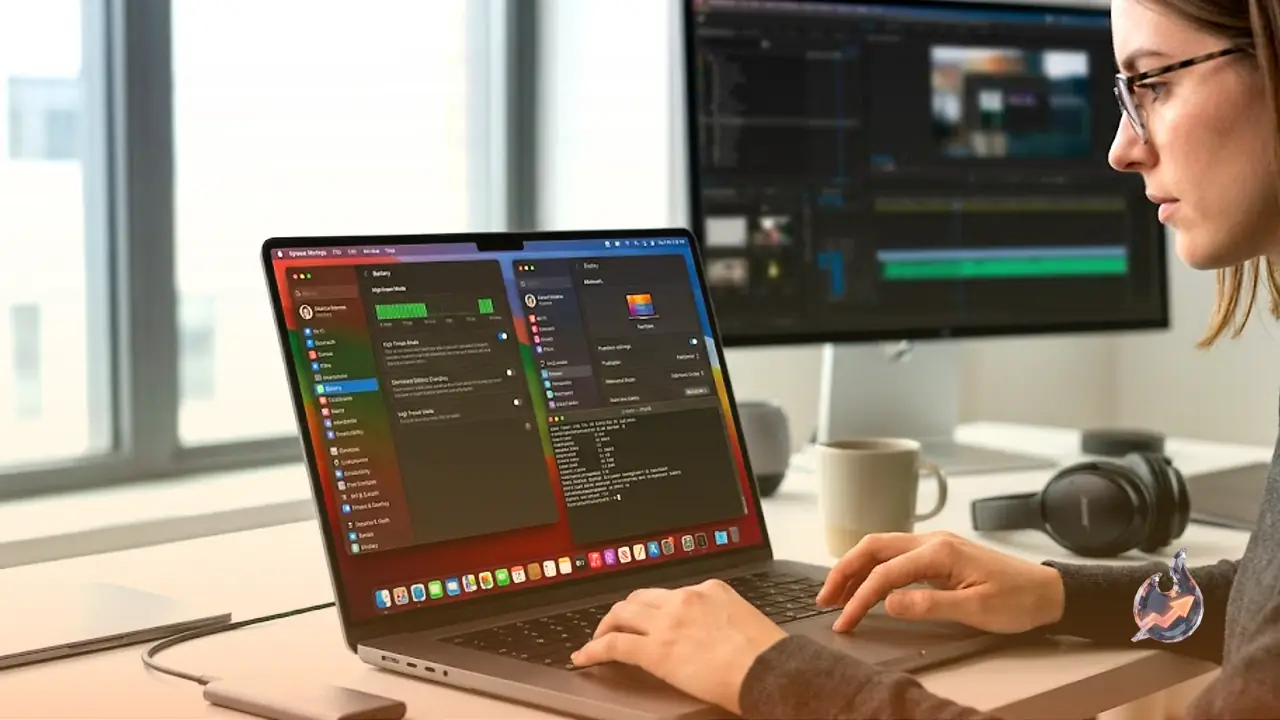
Low Power Mode is no longer an iPhone-only trick. Since 2021, MacBooks have shipped with it too, dialing back processing speeds to give you a bit more runtime when the battery starts to dip. But don't think of it purely as a way to eke out the last 20% of charge. Think of it instead as an all-day battery booster. As long as you don't actually need the horsepower, you can leave Low Power Mode on any time the laptop is off the charger. To have your machine switch to it automatically, open System Settings and go to Battery. Under "Energy Mode," find "On battery," click the drop-down menu and choose "Low Power Mode." Now, every time the Mac leaves the charger, it'll flip Low Power Mode on without you lifting a finger. You can reverse it any time from that same menu. And if you head to System Settings, Control Center and then Battery, you can set "Show Energy Mode" to "Always" so Low Power Mode is reachable straight from the battery icon in your menu bar at all times.
Turn on High Power Mode to boost performance
If you have the right "Pro" or "Max" MacBook Pro, meaning something like an M4 Pro or M1 Max, you get the flip side of Low Power Mode: High Power Mode. Apple says it pushes your MacBook Pro's fans harder than they'd normally go, keeping the components cooler for longer during heavy workloads. It also sidelines processes that hog system resources so the Mac can focus on the task at hand. When you need to run your MacBook Pro flat out, it's worth switching on, especially when you know you'll want the extra headroom. The feature is only on select Pro and Max models: M1 Max and newer (16-inch), M3 Max and newer (14-inch), and M4 Pro and newer in both the 14- and 16-inch sizes. You'll find High Power Mode in the same settings menu as Low Power Mode, and you can enable it only when needed, or whenever the Mac is on battery or plugged in. Run it constantly and you'll burn through more charge than usual. In fact, Apple specifically recommends a 96W power adapter when using it on the 14-inch M4 Pro and M5 Pro MacBook Pros, a hint that the mode is especially demanding.
Take manual control of the fans for better cooling
Useful as High Power Mode is, it's just an on/off switch with no extra customization, which leaves fan speeds entirely up to macOS. If you want full control over your Mac's cooling, you'll need a third-party tool. There are several options out there, but Macs Fan Control has been a reliable pick since the Intel days. A 2016 MacBook Pro (with the touchbar, no less) that was really dragging near the end of its life could be kept usably quick during working hours by running its fans at maximum, cool enough to keep that i7 chip in check. Apple's M-series Macs haven't quite reached that point yet, though even an M1 iMac can slow down a touch, especially with a pile of tasks running at once. Nudging the fans now and then helps keep that first-generation Apple silicon from overheating, and the same will likely apply to an M3 Pro MacBook Pro once it starts to show its age, probably years down the line.
Cap the display's dynamic range and frame rate to save battery
Apple's modern MacBook Pro displays are fantastic. They're high refresh, so motion is a buttery-smooth 120Hz, and they support HDR, really making the highlights in photos and video pop. All that extra work can take a toll on battery, though, so if your main goal is stretching the time between charges, consider "dumbing down" the display when you're unplugged. It's easy enough: on Low Power Mode, the display automatically drops its refresh rate, but you can also adjust it manually from System Settings and then Displays. There, under "Refresh rate," pick "60 Hertz" instead of "ProMotion." You can also drop the display from XDR (which can hit a maximum of 1,600 nits) to the standard "Apple Display" option, which lowers peak brightness to SDR limits. An M3 Pro Mac tops out at 600 nits here, while newer Macs can reach 1,000 nits. Alternatively, you can have the Mac fall back to SDR only when streaming video on battery. You'll find that toggle in System Settings, Battery and then Options.
Use "Audio MIDI Setup" to get the best wired sound
Your MacBook Pro likely has a built-in DAC (digital-to-analog converter) that lets you listen to lossless music, in other words, hear your songs without compression. There's plenty of debate over whether the average listener can even tell the difference, and you'll certainly need the right headphones or speakers to notice. But if you've got the gear and subscribe to a lossless-capable service like Apple Music, the extra fidelity is worth a try. The catch is that your MacBook Pro may not be set up to deliver that output by default. You'll have to check through an app called "Audio MIDI Setup," found via Spotlight or in the Utilities folder inside Applications. Pick your audio source from the list on the left, then click the menu next to "Format." On the MacBook alone you can push output up to 96 kHz. To go higher, since some Apple Music tracks support up to 192 kHz, you'll need a dedicated DAC or audio interface.
Use iPhone Mirroring to keep your focus on the Mac
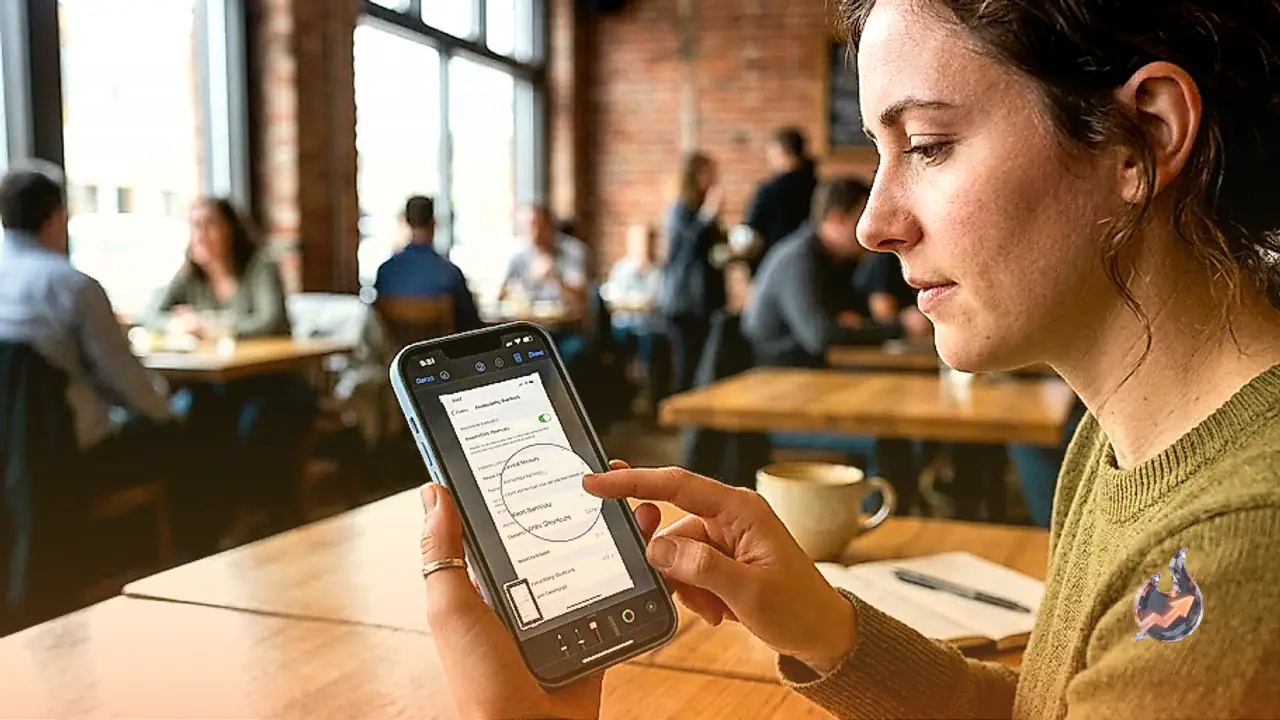
Your iPhone is often a distraction while you're working on your Mac, yet it's tough to get through a whole workday without checking it. This feature may not save you from getting sucked into Instagram, but it can stop you from constantly picking the phone up at your desk. "iPhone Mirroring" lets you view and control your iPhone's screen directly on your Mac, so you can catch up on messages, review notifications and scroll through your apps without ever touching the phone itself.
Turn your iPad into a second display
One of the best ways to turn a MacBook Pro into a genuine workhorse is to hook it up to an external display, which instantly makes your laptop feel like a desktop. If you already have a monitor, great. If not, you'll have to buy one, which can get pricey, especially for something tuned for MacBooks. But if you happen to own an iPad, you can press it into service as a second screen. Apple's Sidecar feature lets you treat an iPad as an extended display, so you can slide Mac windows over to the iPad's screen. Alternatively, if it suits your workflow better, Universal Control lets you drive the iPad's own windows from your MacBook's keyboard and trackpad. It works both wirelessly and over a wired connection, and there are some limited touch controls on the iPad side while it's showing Mac windows. Here's a fun detail: macOS 27 will add full touch controls to Sidecar, so your iPad will essentially run a touch-based version of macOS for the first time. Once it's set up, you just "push" your cursor off the Mac and into the iPad to start using it. It's one of those touches that reminds you why the Apple ecosystem is so hard to leave.
Turn your display into a "ring" light
With ring lights becoming so popular for video calls and short-form video, Apple added a native ring light feature to the Mac. When it's on, macOS draws a ring of light around the edges of your display, mimicking the effect of a dedicated light. It works across many Mac models, but it's likely most effective on MacBook Pros, since they're the ones with XDR displays and their higher peak brightness. To use it, open a video calling app and turn on the camera. If you're just testing it, open FaceTime, which fires up the camera right away. Click the FaceTime icon in the menu bar, then choose "Edge Light" from the drop-down. Click the arrow next to the feature and you'll find controls for the ring's brightness as well as its color temperature.
Change these settings to "fix" your trackpad
A MacBook Pro is easy to love, but Apple's default cursor speed can be maddening. Some people need it cranked to the fastest setting, though opinions vary wildly. Speed isn't the only issue, either. Apple also sets the scrolling direction to "Natural" by default, meaning scrolling up on the trackpad moves a page down, and vice versa. It's meant to mirror the feel of scrolling on a touchscreen, and plenty of people are used to it, but plenty of others can't stand it. Whichever camp you're in, "fix" the trackpad from System Settings and then Trackpad. Play with the different speeds to see which feels right. Below that, adjust the "feel" of the click, which doesn't actually move at all since it uses haptic vibrations rather than a physical button. "Firm" tends to feel best, as it most closely mimics a real physical click. There's a lot to explore here, but if you want to reverse the scrolling defaults, click "Scroll & Zoom" and turn off "Natural scrolling."
Make sure your power adapter supports fast charging
Your MacBook Pro probably supports fast charging, which can get you up to 50% battery in about 30 minutes. If your supported MacBook Pro isn't charging that quickly, it's usually because your power adapter isn't big enough. Apple publishes a list of the adapters that enable fast charging on each compatible Mac, and for MacBook Pros the options are limited. If your Pro is a 14-inch from 2021 or later, you'll need at least a 96W charger for fast charging. A 16-inch MacBook Pro from 2021 or later, however, needs a 140W charger. Anything less and you'll charge slower than you could. Mind the cable too: you'll need either a MagSafe 3 cable or a USB-C charging cable.