



















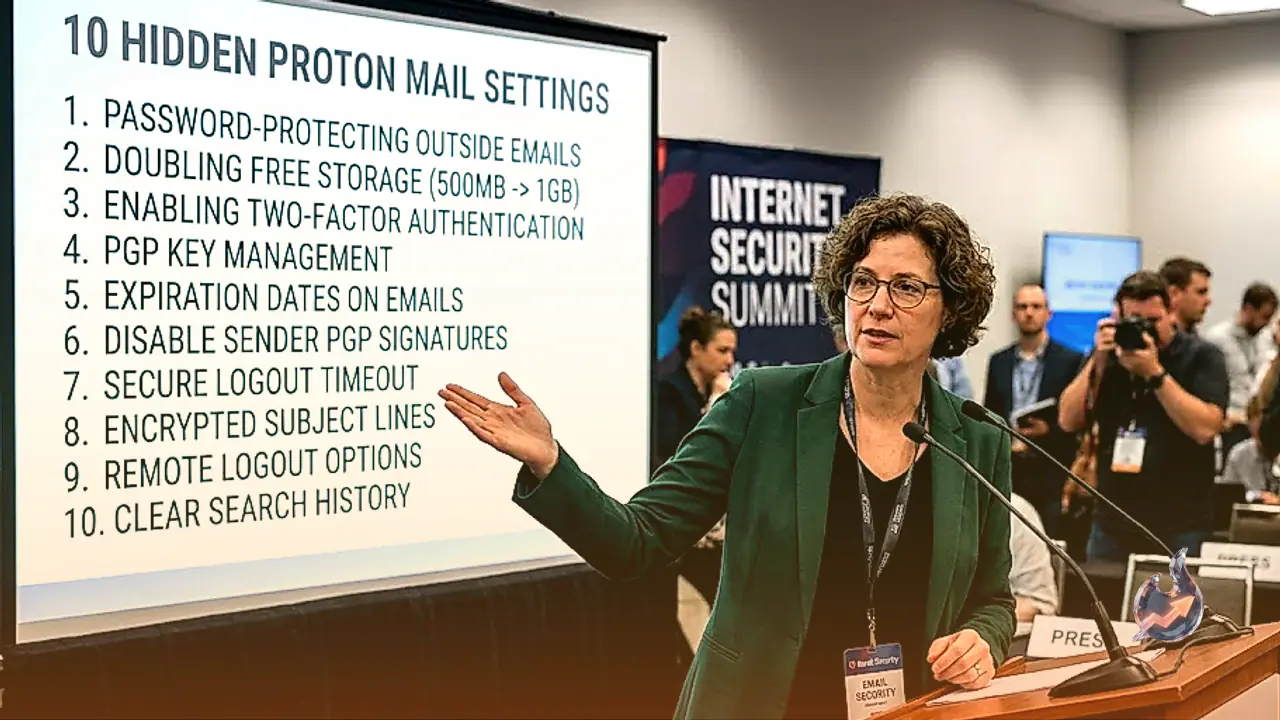

Encrypted email has always been Proton Mail's calling card, but tucked inside the app are a handful of settings most people never bother to open, from a way to double free storage to a trick for locking down mail sent to non-Proton inboxes. Here are ten features worth switching on.
Doubling Free Storage Without Paying
Proton Mail's free tier caps out at 500 MB of storage, which large attachments can chew through in no time. A Plus subscription bumps that to 15 GB for $4 a month, matching what most Google accounts offer, but there is a free workaround too. Accounts that finish Proton's onboarding checklist within 18 days of signing up earn an automatic 1 GB, effectively doubling the default allowance. Open the mailbox, find the "Get more storage" prompt in the left sidebar, and work through every listed action. Completing the full checklist adds the extra 500 MB permanently, with no payment involved.
Reserving an Email Address for a Child
Common names get scooped up fast on any mail platform, and simple firstname.lastname combinations may already be gone by the time a child is old enough to want their own inbox. Proton lets a parent claim a username in advance and hold onto it for up to 15 years before it has to be activated. Setting one aside costs just $1, which goes toward the Proton Foundation, and generates a voucher that can be saved and handed over once the child is ready to use it. By then, a clean, private address will already be waiting for them.
Migrating Old Accounts With Easy Switch
Moving away from another provider, or simply pulling scattered accounts into one place, is handled through Proton's Easy Switch tool. It connects to Gmail, Yahoo Mail, Outlook and any other service that supports IMAP access, importing mail, contacts and calendars without forcing an immediate cutover. Once linked, the external address can send and receive mail from inside Proton, and anything it exchanges with another Proton user is automatically end-to-end encrypted. Copies stay in the original inbox the whole time, so nothing needs to be abandoned mid-transition. The option sits under Settings, then Import via Easy Switch; pick the provider and follow the prompts.
Adjusting the Undo Send Window
A typo that slips past, a forgotten attachment or a message fired off to the wrong person happens to nearly everyone, and Proton builds in a short buffer to catch it. Delayed sending holds outgoing mail for up to 20 seconds before it actually leaves the outbox, giving a brief chance to pull it back. The default delay sits at 10 seconds, but it can be dialed down to 5 or 0 seconds, or extended to the full 20. The control lives under Settings, then Messages and composing, inside the Composing section, where a dropdown labeled Undo send sets the timing.
Using Aliases to Filter Incoming Mail
Keeping a primary address private, or sorting mail from newsletters and sign-up forms away from everything else, is easier with an alias. Proton supports unlimited plus addressing, so adding a plus sign and a word after the username, such as [email protected], creates a working address that still lands in the main inbox and can be filtered automatically. For something that hides the real username entirely, Proton can also generate a randomized alias; free accounts get up to 10 of these, while paid plans allow unlimited. They're created from the shield icon on the web app, under Hide-my-email aliases, by selecting New alias.
Password-Protecting Mail to Non-Proton Recipients
Messages between two Proton accounts are end-to-end encrypted automatically, but that protection doesn't reach someone on Gmail or another provider unless a password is added manually. Composing a message and clicking the padlock icon in the toolbar opens the option to set a password and a hint, along with an optional expiration date; the password itself has to be shared with the recipient separately, since it isn't included in the email. The first reply to a password-protected message also stays encrypted, though a reply to that reply needs encryption switched back on by hand.
Setting Expiration Timers on Messages
Beyond passwords, Proton can make a message vanish from an inbox entirely after a set period, so nothing lingers indefinitely in a sent folder or a recipient's account. The feature works on mail exchanged between Proton users and on password-protected messages sent outside the service; paid accounts also get the ability to make incoming mail self-destruct, on top of the automatic deletion that already happens in trash. Setting it up means clicking the hourglass icon on a message, choosing a date and time, checking the box if the recipient is outside Proton and the message is password-protected, then confirming with Set.
Stripping Metadata From Sent Photos
A photo carries more than the image itself; location coordinates, timestamps and device details are often embedded invisibly and can reveal more than intended if the file ends up in the wrong place. Proton offers to strip that metadata before an image goes out, so a photo can be attached and sent without those hidden details tagging along. The option appears automatically as a "Remove metadata" prompt the moment an image is added to a draft, and applying it takes a single click.
Turning On Message Content Search
Because of Proton's encryption, the default search only matches names, dates, addresses and subject lines rather than the actual text inside a message. Enabling full content search builds a searchable index locally, inside the browser, keeping it inaccessible to anyone without physical access to the device it was built on. It's switched on from the search bar at the top of the web inbox, using the Enable option next to Search message content, then confirming with another click on Enable. Building the index takes up some storage and a little time, but afterward it updates automatically as long as the browser stays open.
Activating a Shorter @pm.me Address
Every Proton address ends in @proton.me by default, unless a custom domain has been connected, but paid subscribers can also switch on a shorter alternative that ends in @pm.me. Both versions land in the same inbox and can both be used to send mail, with the shorter one being easier to read aloud over the phone or print on a card. Turning it on means going to Settings, then Identity and addresses. It's a paid-only feature to activate: downgrading to the free plan still lets mail arrive at the @pm.me address, it just can't be used to send anything anymore.